Subscribe For Free Updates!

We'll not spam mate! We promise.

Showing posts with label Interesting Tricks. Show all posts

Saturday, 28 March 2015

How to Play Android Games on PC & Mac 2015


Today, many people in this generation has its own Android phone. Enhancing features of the Android phones being the way that he has taken on the smartphone market. Google Play Store provides many apps and games which makes your Android phone more entertaining and highly productive device. Suppose you might not own an Android mobile but want to play an awesome game that you played on your friend’s mobile.Or you wanted to test apps before installing it on your device? Or is your child always playing games on mobile for hours together draining the battery? Then this article is for you !

I'm going to tell you how to get the Android environment on your computer. So, that you can play it on your computer without an Android phone.

Steps

1.  First Start off by downloading BlueStacks - http://www.bluestacks.com - It's a free program and works on both Mac and Windows. This program is used to run Android environment on your computer.


2.  Installation: For Windows users, it should be a small file (around 20 MB) which you open up and later downloaded packages automatically and that's good. Mac users, it should be a 100 MB .dmg file which you will need to mount and drag the .app file to your preferred location on your computer.
Note: If you are unable to install online then download offline installer - Download Click Here


3.  After Installation open up BlueStacks. It take some time for first load, but it will not get more time later you open up.


4.  Install your desired .Apk file which you want to run in your Android environment.


Enjoy...!

Thanks for Reading this Article!

Watch Video Tutorial


Friday, 27 March 2015

Create Password Protected Folder without Any Software


Today I will show you an amazing and interesting trick to Create password protected Folder without using any extra cost software for all Windows platform. It is very easy to do you have to simply enter or paste coding in Notepad which is below in this post. It works in all Windows platform. Follow these simple steps to learn this trick.

Steps to Create Password Protected Folder:

  1. Open Notepad and Copy given below code into it.
    cls
    @echo off
    title Folder Locker
    IF EXIST "Control Panel.{21EC2020-3AEA-1069-A2DD-08002B303­­­09D}" GOTO UNLOCK
    IF NOT EXIST Locker GOTO MDLOCKER
    echo Folder Created.
    :CONFIRM
    echo Are you sure you want to lock the folder? (Y/N)
    set/p "cho="
    IF %cho%==Y GOTO LOCK
    IF %cho%==y GOTO LOCK
    IF %cho%==N GOTO END
    IF %cho%==n GOTO END
    echo Invalid Choice.
    GOTO CONFIRM
    :LOCK
    ren Locker "Control Panel.{21EC2020-3AEA-1069-A2DD-08002B303­­­09D}"
    attrib +h +s "Control Panel.{21EC2020-3AEA-1069-A2DD-08002B303­­­09D}"
    echo Folder Locked.
    GOTO END

    :UNLOCK
    echo Enter password to unlock the Folder :
    set/p "pass="
    IF NOT %pass% == pchacks GOTO FAIL
    attrib -h -s "Control Panel.{21EC2020-3AEA-1069-A2DD-08002B303­­­09D}"
    ren "Control Panel.{21EC2020-3AEA-1069-A2DD-08002B303­­­09D}" LOCK
    echo Folder Unlocked Successfully.
    GOTO END
    :FAIL
    echo Invalid Password!
    GOTO END

    :MDLOCKER
    md Locker
    echo Folder created.

    GOTO END
    :END
    PAUSE
  2. Save the Notepad as locker.bat (.bat is necessary)
  3. Now open locker.bat file and press any key to continue. For first time a New Folder will be created with name Locker
  4. Copy the data which you want to protect to the Locker folder.
  5. Now double click locker.bat file and when command prompt appears type Y and press Enter.
  6. Now Locker folder will be hidden from your view, to access that folder double click on locker.bat
  7. It will ask for password enter the password and done. (Default password is pchacks)
 Note: To change the password replace pchacks with your own password in the above code.

How to keep Secure your Folder ?

You might be thinking that anyone can access the password by opening that locker.bat file in Notepad or any other text editor. To make it more secure hide locker.bat in some secure location after following the above steps. To access the secured file double click on locker.bat. I would suggest copying locker.bat file into Pendrive and copying it into your computer whenever you required to access to your protected files.

Enjoy...

Thanks for Reading

See this Video Tutorial


How to Download Android Apps on PC from Google Play Store [Latest]


Google Play Store has available many cool features which have millions and millions free games and apps. You can directly download play store apps from your android mobile but the main problem is you cannot download play store app and game directly on your PC. When you install any app and game on PC from Google Play Store it says you don't have android devices. If your android phone will not have internet in it you won't be able to download the app from Play Store. If you want to download android apps and game from Play Store on PC you will need to have internet. Now I'm here with the tricks to download android apps directly from Google Play Store to your PC. Follow the below steps to download android apps in just 1-click.

Steps to download Android Apps on Pc from Play Store:

  1. First open any app (apk file) which you want to download from Play Store.
  2. Copy the URL or Package Name of the app (apk file).

  3. Now Go to - http://apps.evozi.com/apk-downloader/

  4. Paste the URL or Package Name in "Package Name or Google Play URL" box.
     
  5. Click on 'Generate Download Link' wait few seconds and the download link will be generated.

  6. Click on Download Link and Enjoy...!

Note: We recommend you to use download manager such as Internet Download Manager (IDM) for better speed. You can download it full version from here Click Here

Video Tutorial on How to Download Android Apps on PC from Google Play Store


Friday, 5 September 2014

How to create animations using Frame by Frame Method in Macromedia Flash

Flash is used mainly to create animations for the web page. Animation is nothing else but a collection of still images. These images are displayed so quickly in a sequence that they give you the illusion of motion. Each image in Flash is called a frame. These frames are represented as the small rectangular cells in the Timeline.


Creating Animations Using Frame-by-Frame Method

  1. Create the object on the stage to be animated. The Timeline just to the right of Layer 1 shows the first key frame dot.


  2. Insert a new key frame. Click Key frame option in the sub menu of Timeline option in insert menu or press F6. A new key frame will appear in the Timeline with a copy of object.


  3. Now, select the next key frame by clicking on it and move the object slightly to change its position.


  4. Continue to insert one frame at a time and every time by selecting that frame change the position of the object. Make it sure while moving the object that the new frame is selected.
  5. The animation can be played by clicking Play option in the Control menu.
  6. To see how it will be viewed on the web page click Test Movie option in the Control menu.
If you are facing problem. Please drop your problem in below comment box.

Thursday, 4 September 2014

How to Make an Invisible Folder in Windows

In windows operating system already have a function to hide a folder. It makes the folder to completely hide. But making folder invisible is a lot of fun. You can easily hide a folder without buying any high cost software's. Read this complete article so that you can know how to make a folder invisible.


Steps to Make a Folder Invisible :

  1. Right-click on any area on desktop where you would like to create the folder. Point to New and     then click 'Folder'.

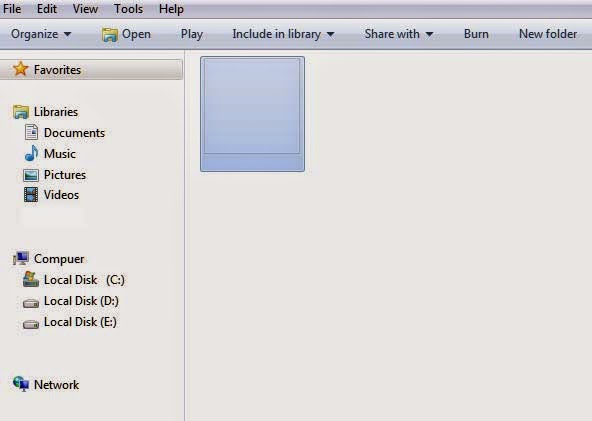
  2. Right-click on 'New Folder' and click 'Customize' tab and then Click on Change Icon option. Scroll right until you find an empty space, then select it and then click OK. This will make your folder invisible but you can still see the text there.


  3. Press F2 or right click and select Rename. Hold Alt button and press 255 number. After that you will see a blank space between there.


If you correctly apply all those steps then you will able to create Invisible Folder. In this easy way you can hide your files in Invisible Folder.

Thursday, 6 March 2014

How to Download YouTube Videos Without Using Any Software (Download Manager)

YouTube is the world's largest video sharing website on internet. YouTube is the huge collection of different kinds of videos like music videos, sports, movies, tutorials, etc. YouTube is the site where you can get all types of videos. But the problem is that YouTube does not have the option of downloading video.
You will waste your time to watch online videos, but don't worry I will show you how to download YouTube videos without using any software (download manager).


Tricks to Download YouTube videos without using any software: 


  1. Open the video you want to download from Youtube.com
  2. Add "ss" between the www. and the youtube.com in the URL section and hit enter.
    Example:
    Normal URL : https://www.youtube.com/watch?v=ro59A1yVmD8

    Modified URL : https://www.ssyoutube.com/watch?v=ro59A1yVmD8
  3. You will redirected to another site SaveFrom.net
  4. Choose format of the video and click on the link of video format.
  5. And your download will start in your browser downloader.
Enjoy...

Keep Visiting For Latest Updates

Please comment if you are facing problem.

Wednesday, 8 January 2014

How to set Animated Live Wallpaper on Desktop in Windows 7

In Windows Vista many people know that vista had an effective function called DreamScene. It allows to set video in live wallpaper on desktop in .wmv or .mpeg format.
Instead of Vista , Windows 7 has a wallpapers slideshow. DreamScene has not gone away, it is deactivated and hidden in system. You want to enjoy the DreamScene function in Windows 7 download the setup file from below download links.


Step by Step guide to install DreamScene in Windows 7

  1. Download the DreamScene Setup file from below links :

  2. After the setup is downloaded, you need to install the setup with administrative privileges. Right click on setup and select Run as Administrator, then install the DreamScene. 

   3.  After that a new item is "Set as desktop background" is appear in Video file (in .wmv or .mpeg format). With the help of this item you can set Video in Desktop background. Please Visit DreamScene gallery  and choose the appropriate video from a wide range of video gallery.


Enjoy...

Saturday, 7 December 2013

How to download Android Apps on PC from Google Play Store

Google Play Store has available many cool features which have millions and millions free games and apps. You can directly download play store apps from your android mobile but the main problem is you cannot download play store app and game directly on your PC. When you install any app and game on PC from Google Play Store it says you don't have android devices. If your android phone will not have internet in it you won't be able to download the app from Play Store. If you want to download app and game from Play Store on PC you will need to have internet on your phone. Now I'm here with the tricks to download android apps directly from your PC. Follow the below steps to download android apps in just 1-click.


Steps to Download Android Apps on PC from Google Play Store :-


1.      First of all install an Apk Downloader Google Chrome extension. Go to Apk Downloader Website then click on Download Extension Now and Google Chrome extension will be downloaded on your computer.
(See the image below)

2.      After Google Chrome extension downloaded drag the file to the extension menu you can open extension option by pressing Ctrl+H it will open browser history on the left side you will see the Extension option just click on it and drag the downloaded file.

3.      Add the new Google chrome extension after that you will automatically redirected to the Apk Downloader window if not redirected just click on option in Apk Downloader.
(See the image below)


4.      Now in Apk Downloader window it will ask for e-mail id, password and GSF id key (Google Service Framework)
Note: You will find your device id (GSF id) by dialing a code *#*#8255#*#* then a New Screen will open up i.e. GTalk Service Monitor Screen will open up just scroll a bit down and just note down your device GSF id key i.e. it will be your Device id.
If you are not able to get GSF id by dialing *#*#8255#*#* then you can find it manually download this App:- Android Device Id
(See the image below)

5.      Now enter the Device id in Apk Downloader option and note use the same Gmail id and password you use on your android phone and then after fill up the information just click on Login button and you will be logged in.

6.      Now go to Play Store (Make sure you are logged in your same account which is earlier used in the Apk Downloader option) open any apps or game you want to download. I choose WeChat app then search the app and open, In the above URL bar on the right side you will see a green apk downloader just click on it wait and download and enjoy.

Enjoy...!!!

Saturday, 5 October 2013

How to Transfer Balance in All Mobile Network Operators


Hi Friends, Today I am here with new trick How to Transfer Balance to All Mobile Operators. You can transfer balance to all mobile network just by simply dialing a code and then you are able to share your balance with your friends, and family. It is really easy just apply below codes and then transfer balance as you want.


Read Below the post to know code for balance transfer for all operators.


BSNL    

Do the following below steps to transfer balance in BSNL operator.
For BSNL you need to send a message type
GIFT<space>Your Friends Mobile Number<space>Amount
And Send it to
53733 or 53738.

For Example: GIFT 9304XXXXXX 50 SEND TO 53733 or 53738.


AirTel

For AirTel you need to type USSD Code *141# and then follow the steps to transfer balance to AirTel user.
Another Method
For AirTel instant balance transfer just type USSD Code *141*1*Amount*Friends AirTel Mobile Number#


AirCel

For AirCel you need to type USSD Code *122*666# and then follow the steps to transfer balance to AirCel user.
Another Method
For Instant balance transfer just type *122*

Terms & Conditions:
  1. You can transfer balance only once a day.
  2. You can transfer amount 10, 20, 30…100, etc.
  3. Re1 or Rs.2 cut as service charge.
  4. You can transfer balance between prepaid users.

!DEA

For Idea balance transfer just type a message GIVE<space>Friends Idea Mobile Number<space>Amount and sent it to 55567.
Example: GIVE 8651XXXXXX 50 Send it to 55567
Another Method
For Idea instant balance transfer just type USSD code *567*Friend Idea Mobile Number*Amount#
Example: *567*8651XXXXXX*50#


Vodafone

For Vodafone users type USSD code *131*Amount*Friends Vodafone Number#
Example: *131*50*9534XXXXXX#
Note: For Vodafone balance transfer you will be charged up to Rs.4


Tata Docomo

For Tata Docomo users just simply send a message BT<space>Friend Docomo Number<space>Amount and send it to 54321
Example: BT 7277XXXXXX 50 Send it to 54321
Note: You will be charged Re.1 as a service charge.


Uninor

For Uninor users balance transfer dial USSD code *202*Friends Uninor Number*Amount#
Example: *202*9059XXXXXX*50#
Note: You will be charged Rs.2 as a service charge.


Enjoy...!!! Balance Transfer Trick For All Operators
Note: Terms & Conditions apply for all operators.

Wednesday, 28 August 2013

How To Recharge Online Free For All Network


Today there are many such free online recharge sites, which allow us to recharge online. But not all sites offer good benefits. Today I'm here with new tricks to how to recharge online for free.

Recharge Online For Free Using Amulyam.in

Amulyam.in is the best site which allow us to recharge online free. Amulyam.in only supports for Indian network, outside India it does not supports. Amulyam.in is the famous website for providing online mobile recharge free for all network in India like BSNL, Aircel, Tata Docomo, Airtel, Vodafone, Uninor, Reliance, Idea. The minimum free recharge amount is Rs.10 which supports for all Indian network. The maximum amount as far as you can earn.


Tricks Recharge Online For Free Using Amulyam.in

  1. Create an account in Amulyam.in
  2. Verify your account by giving your mobile number.
  3. Read Bonus Mail that you have registered on amulyam id.
  4. At first you will get 10 paisa as your first login.
  5. Invite your friend on Amulyam.in using your referral link on Facebook or Google+ and get Rs.1 per each registration instantly in your account.

Tips To Increase Your Account Balance

  •  Login Daily and get 25 paisa everyday for your daily login.
  •  Play contest and win Rs.10 free recharge.
  •  Invite your friend in amulyam and get Rs.1 for each registration.
  •  Participate in Vocabulary builder, learn 15 words and get 50 paisa instantly.
  •  Participate in Trivia game and get 50 paisa instantly.